


Keep Awake 1.0.2
Stop your PC from sleeping and keep the screen on with one click. Free, no ads.
Screenshots
About this app
Keep your computer awake with one click
Keep Awake is a free tool that temporarily stops your Windows PC from going to sleep and, if you like, keeps the screen from dimming and turning off. No more sleeping laptop in the middle of a big download, a presentation, a movie, a long meeting or while you read a recipe on screen. When you're done, everything goes back to normal.
There's no need to change your Windows power settings and then forget to change them back. Keep Awake never touches your settings permanently; it simply tells Windows "don't sleep right now" while it's on. As soon as it stops or closes, your PC sleeps with its usual settings again.
How it works
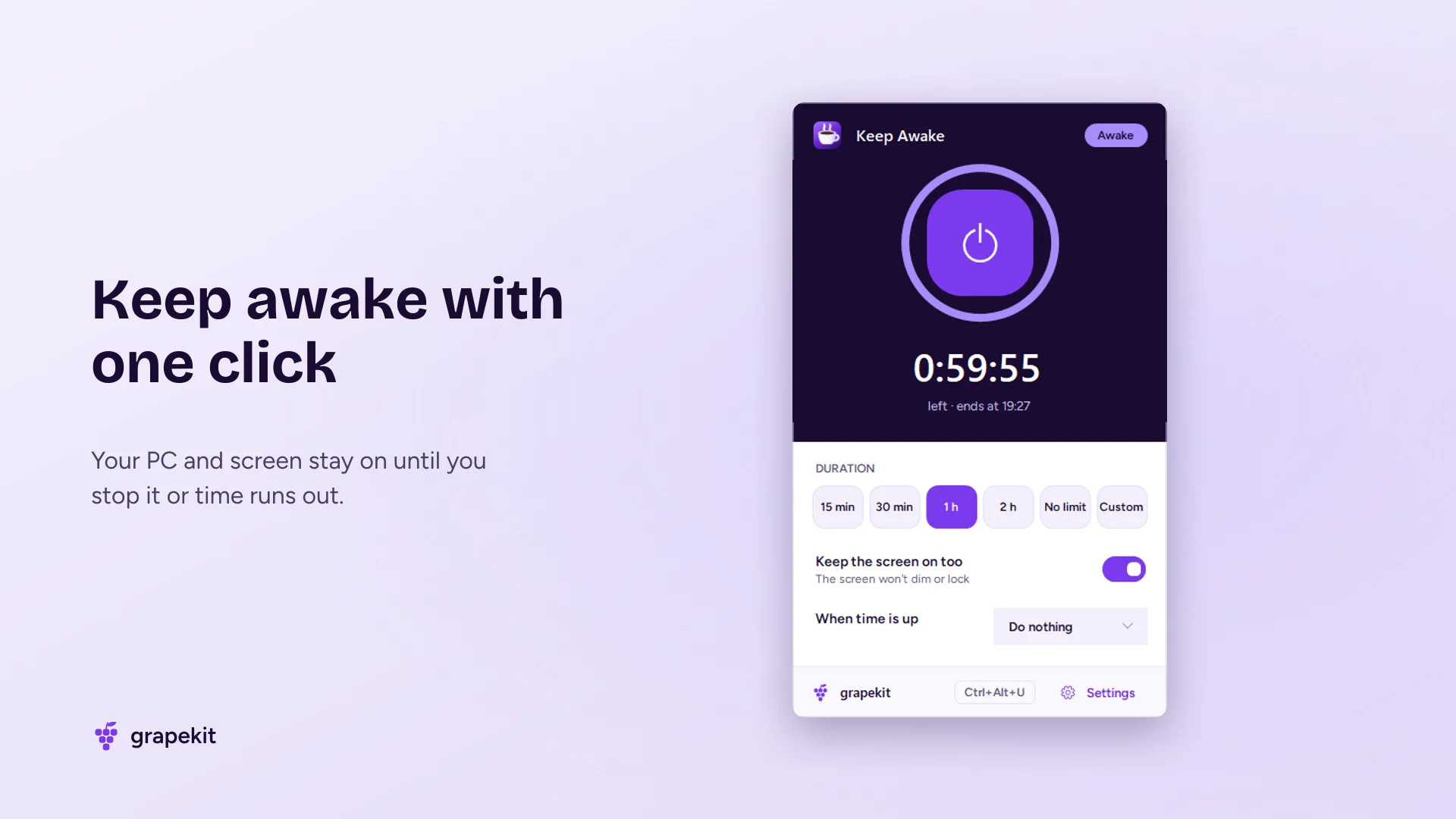
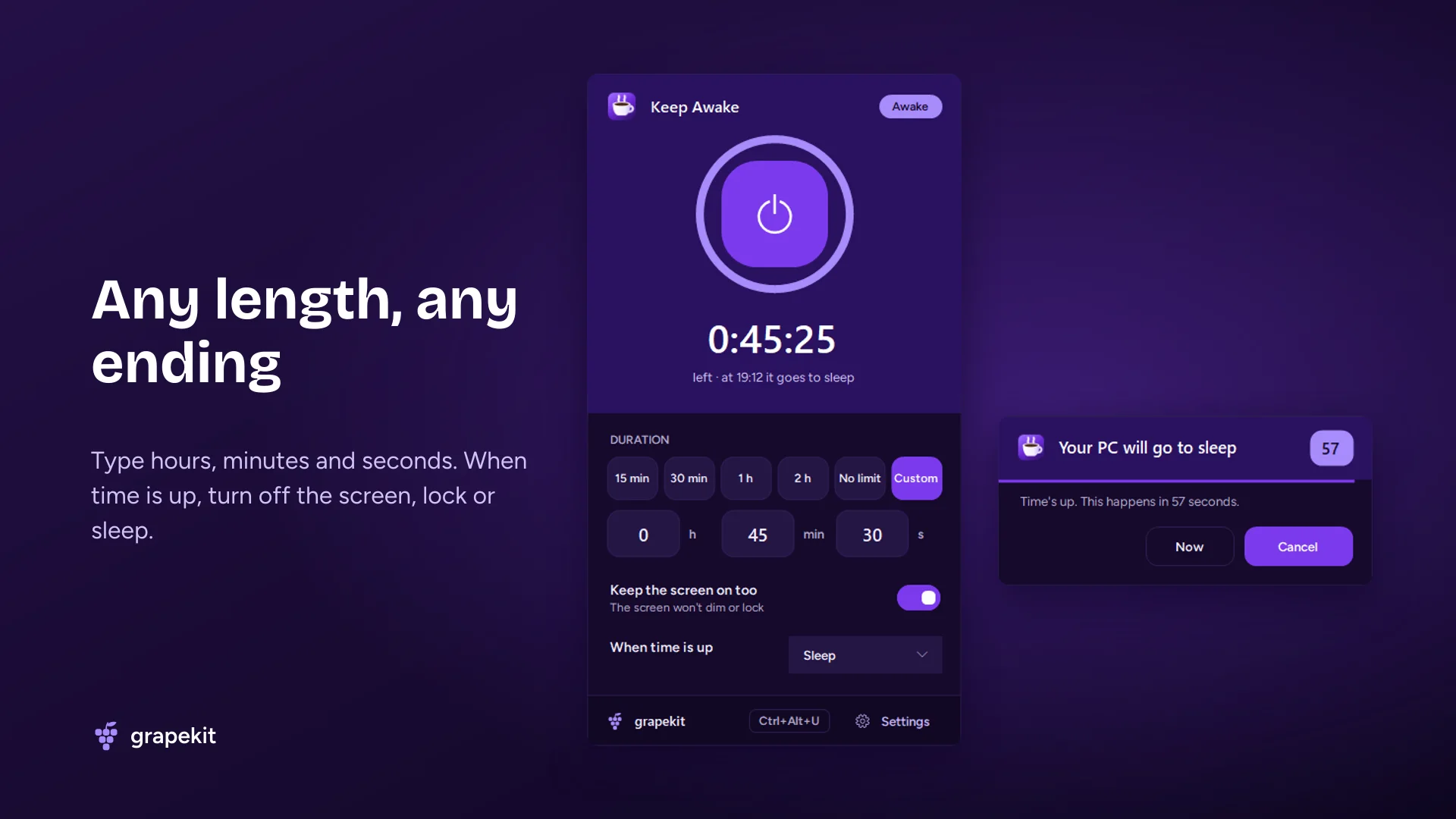
Click the coffee-cup icon next to the clock and press the big button in the panel. That's it. You decide how long it stays on: 15 minutes, 30 minutes, 1 hour, 2 hours, no limit, or any length you like by typing hours, minutes and seconds. A ring and a countdown show the time left and when it ends.
- Download and install Keep Awake. It sits quietly in the system tray.
- Click the tray icon and choose a duration.
- Press the button in the middle. Your PC stays awake for as long as you chose.
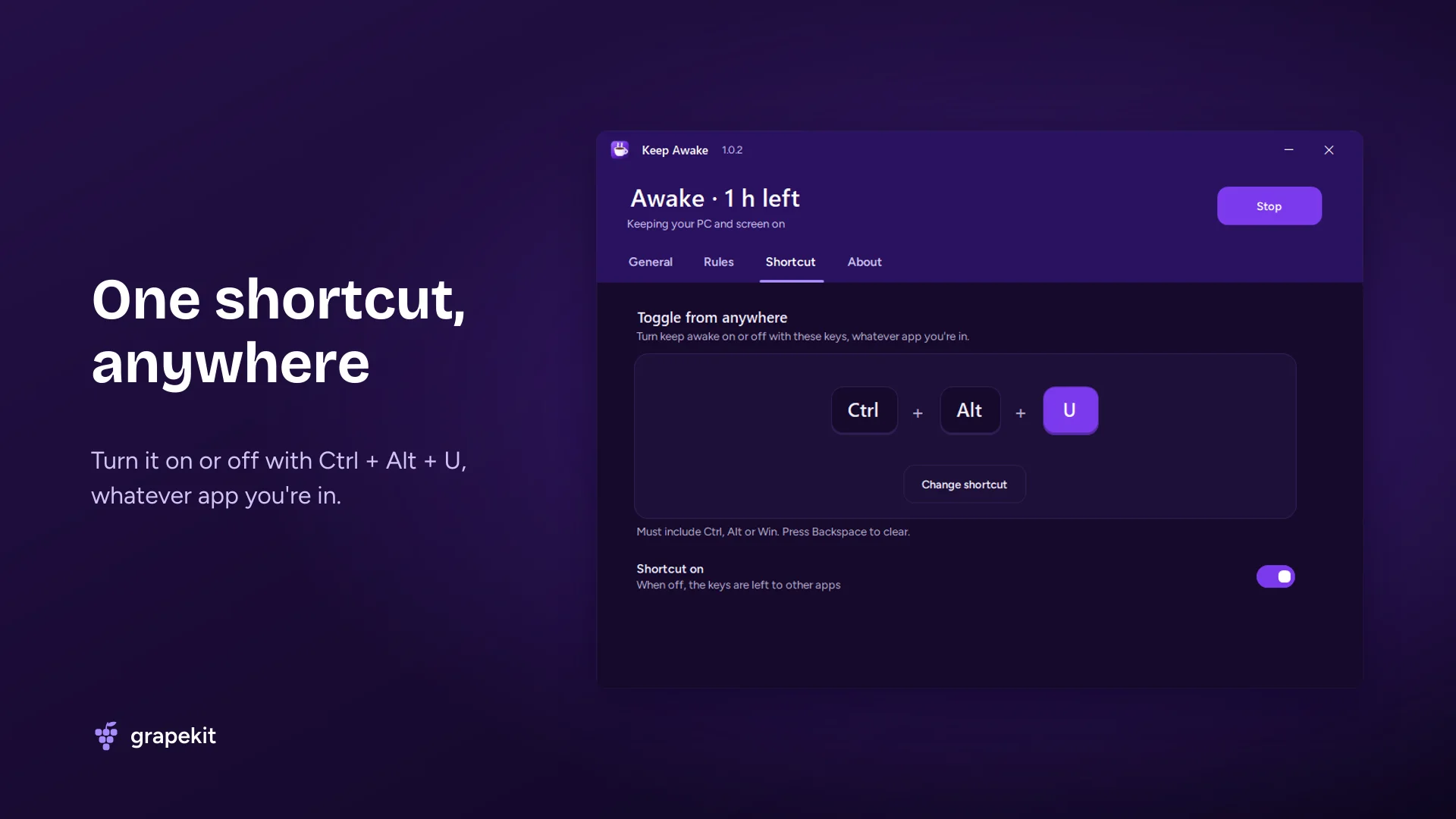
Use the Ctrl + Alt + U shortcut to turn it on or off from anywhere; you can change the shortcut in the settings.
Two modes: just the PC, or the screen too
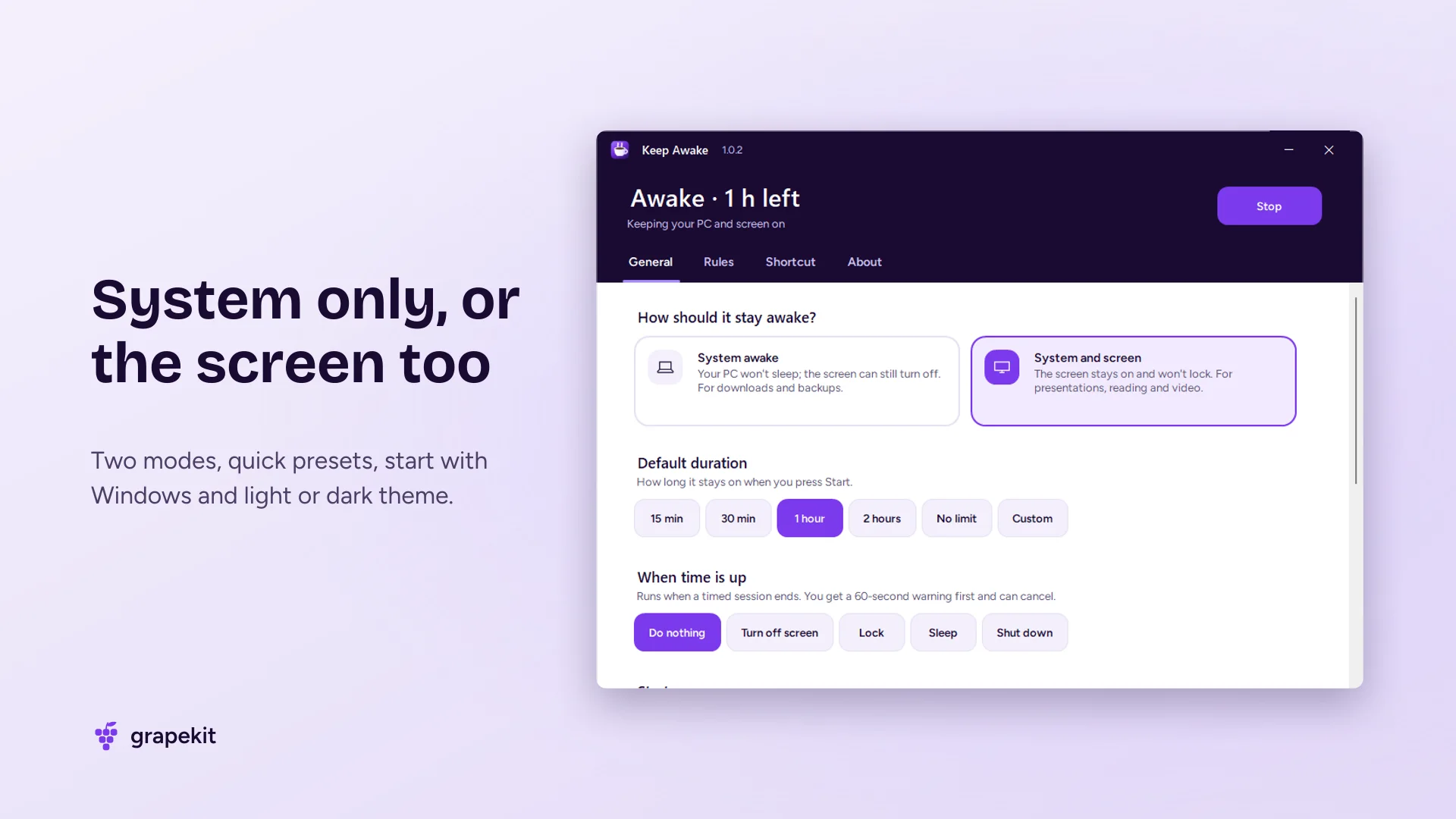
In System awake mode your PC won't sleep, but the screen can still turn off — perfect for downloads, backups, video exports or long installs. In System and screen mode the display stays on and won't dim. Choose it for presentations, reading, watching or keeping an eye on something on screen.
Sleep, lock or shut down when time is up
Keep Awake also works as a sleep timer. When the time runs out it can do nothing, or turn off the screen, lock your PC, put it to sleep or shut it down. Start a movie and let your PC go to sleep two hours later, for example. To avoid surprises, a 60-second warning appears first and you can cancel with one click.
Automatic when it matters
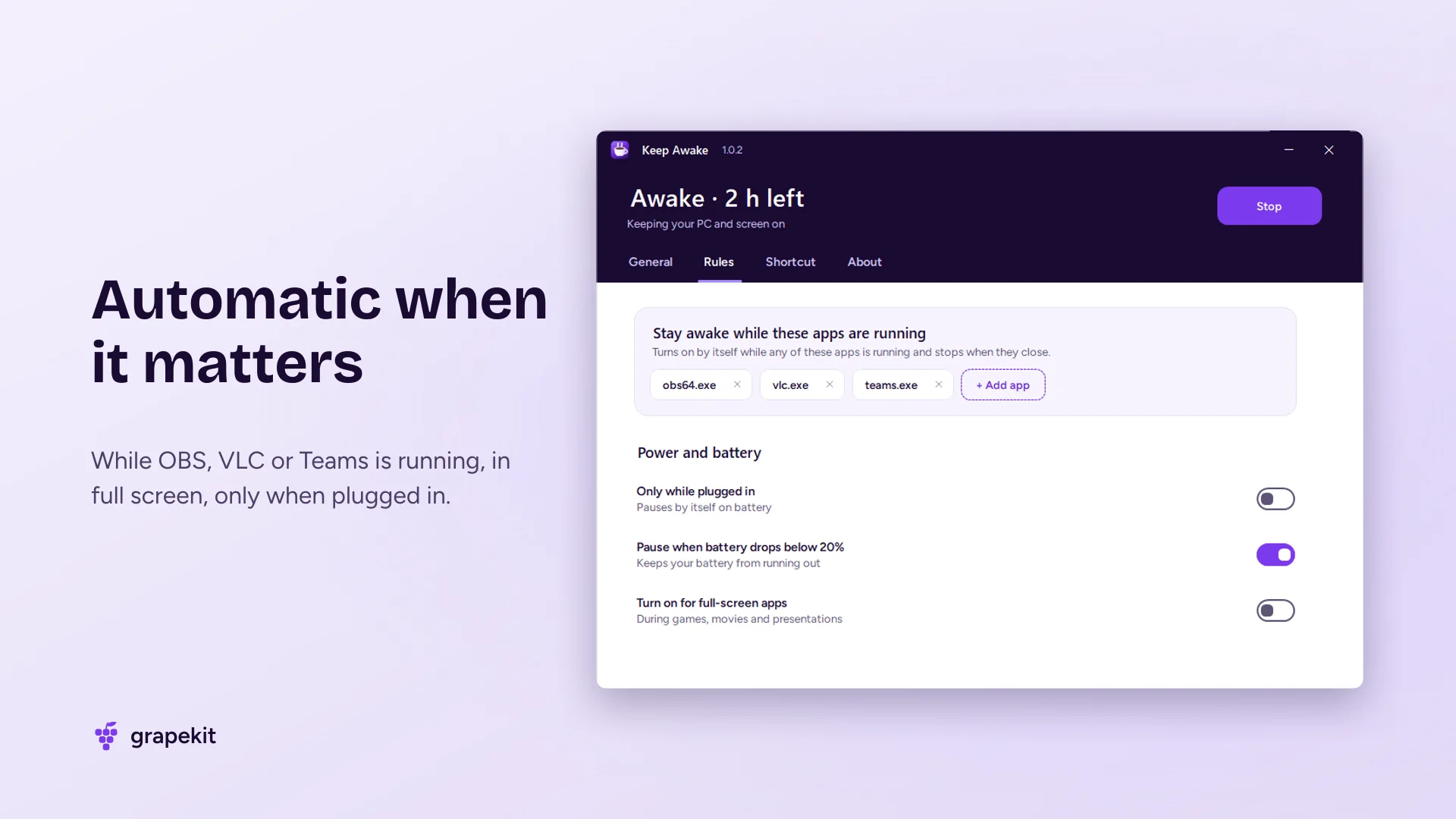
Don't want to turn it on by hand every time? Set up rules. With an app rule your PC stays awake on its own while OBS, VLC, Teams, Zoom or any app you pick is running, and goes back to normal when it closes. The full-screen rule kicks in automatically during games, movies and presentations. On laptops, only while plugged in and pause when the battery is low keep your battery from running out.
Light, safe and private
Keep Awake uses the documented Windows power management API. It doesn't move your mouse, press keys or modify system files. It collects no personal data, needs no account and shows no ads. It supports light and dark themes, an English and Turkish interface, and can start with Windows. The source code is open on GitHub.
Frequently asked questions
Is Keep Awake free?
Yes. It's completely free, has no ads, needs no account and is open source (MIT license).
How do I stop my computer from going to sleep on Windows 11?
Install Keep Awake, click the coffee-cup icon in the tray and press the big button. It prevents sleep on Windows 11 and Windows 10 without changing your power settings. When the time is up or you stop it, your normal sleep settings apply again.
Does it keep the screen on too?
Yes. With "Keep the screen on too" enabled, the screen won't dim or turn off. If you only want the PC to stay awake, turn this option off and the screen will turn off as usual.
Does it change my power settings?
No. Your Windows settings are never changed permanently. While Keep Awake is on it asks Windows not to sleep; the request ends automatically when it stops or closes.
Can it put my PC to sleep or shut it down when time is up?
Yes. In "When time is up" choose turn off screen, lock, sleep or shut down. A 60-second warning appears first and you can cancel it.
Will it keep my Teams status green?
No. Keep Awake doesn't move the mouse or press keys; it only stops the PC and screen from sleeping. Apps like Teams decide your status from keyboard and mouse activity, so you may still appear "away". It's ideal for keeping the screen on during meetings and presentations.
Does it prevent the lock screen on a work computer?
As long as the screen stays on, Windows' "lock when the screen turns off" behavior isn't triggered. If your company's IT policy forces a lock after a set time, that policy still applies.
How is it different from PowerToys Awake?
Keep Awake is a small standalone tool, so you don't need to install the whole PowerToys suite. It also adds free-form durations, sleep/lock/shut down when time is up, app and full-screen rules, and battery rules.
Which Windows versions does it support?
Windows 10 (1809 and later) and Windows 11, on x64, ARM64 and 32-bit (x86) PCs. You don't need to install .NET or anything else.
Features
- Stop your PC from going to sleep with one click
- Keep the screen from dimming and turning off (optional)
- Quick presets: 15 min, 30 min, 1 hour, 2 hours, no limit
- Custom length: type any hours, minutes and seconds
- When time is up: turn off screen, lock, sleep or shut down
- Stay awake automatically while chosen apps are running
- Automatic during full-screen games, movies and presentations
- Only while plugged in; pause when the battery is low
- Shortcut from anywhere: Ctrl + Alt + U
- Never changes Windows power settings permanently
- Light and dark theme, English and Turkish interface
- Free, no ads, open source; collects no personal data
Release notes
v1.0.2 - Fixed the window briefly freezing during updates; the app now restarts with normal user rights after updating v1.0.1 - Custom length (hours, minutes, seconds); turn off screen, lock, sleep or shut down when time is up; feedback page v1.0.0 - First release
User reviews
No reviews yet. Be the first to write one.